Widgets, layouts and transitions
A layout splits the screen into zones. Widgets are the live parts you put in them: a clock, the weather, a news ticker. A transition is a widget too, and it works in the zone you put it in. This guide shows how the three fit together, using a real ScreenTinker 3.0 server. The café in the pictures is invented.
In short:
- Make a layout with the zones you want (Layouts).
- Make your widgets (Widgets).
- In a playlist, pick the layout, add your pictures and widgets, and choose a Zone for each one.
- For a transition, make a Transition widget, add it to the same playlist, and put it in the zone it should affect.
- Publish the playlist.
What a layout and zones are
A layout is a plan of the screen: a big area for pictures, a strip along the bottom for a ticker, a corner for the clock. Each area is a zone. Every zone plays its own items, one after another, on its own timer, so the clock can stay put while the pictures change.
A layout reaches a screen in one of two ways:
- On the playlist (new in 3.0). Pick the layout once on the playlist, and every screen that plays it draws it.
- On the screen. The playlist’s Layout row is left on Each screen’s own layout, and each screen uses the layout set on it.
One zone is the main zone. Items that you have not put in a zone play there. If you do not mark one, the largest zone is the main zone.
Make a layout
- Open Layouts. Either choose Use Template on one of the templates (Split, L-Bar with Ticker, Three Column, Four Quadrants and portrait versions), which makes a copy for you and opens it, or choose New Layout and give it a name. A new layout starts with one full-screen zone.
- Click the name at the top to rename it.
- Drag a zone to move it and drag its corner handle to resize it, or select it in the Zones list and type X (%), Y (%), Width (%) and Height (%) under Properties. Add Zone adds another.
- Give each zone a Name you will recognise later (“Clock”, “Ticker”). You choose zones by these names in the playlist.
- Set Fit for the pictures in the zone: Contain shows the whole picture and may leave bars, Cover fills the zone and may crop, Stretch fills it and may distort.
- Tick Main zone on the zone where unplaced items should go.
- Optional: the Portrait and 4:3 tabs arrange the same zones for screens of those shapes. Without one, those screens use the landscape zones.
- Choose Save.
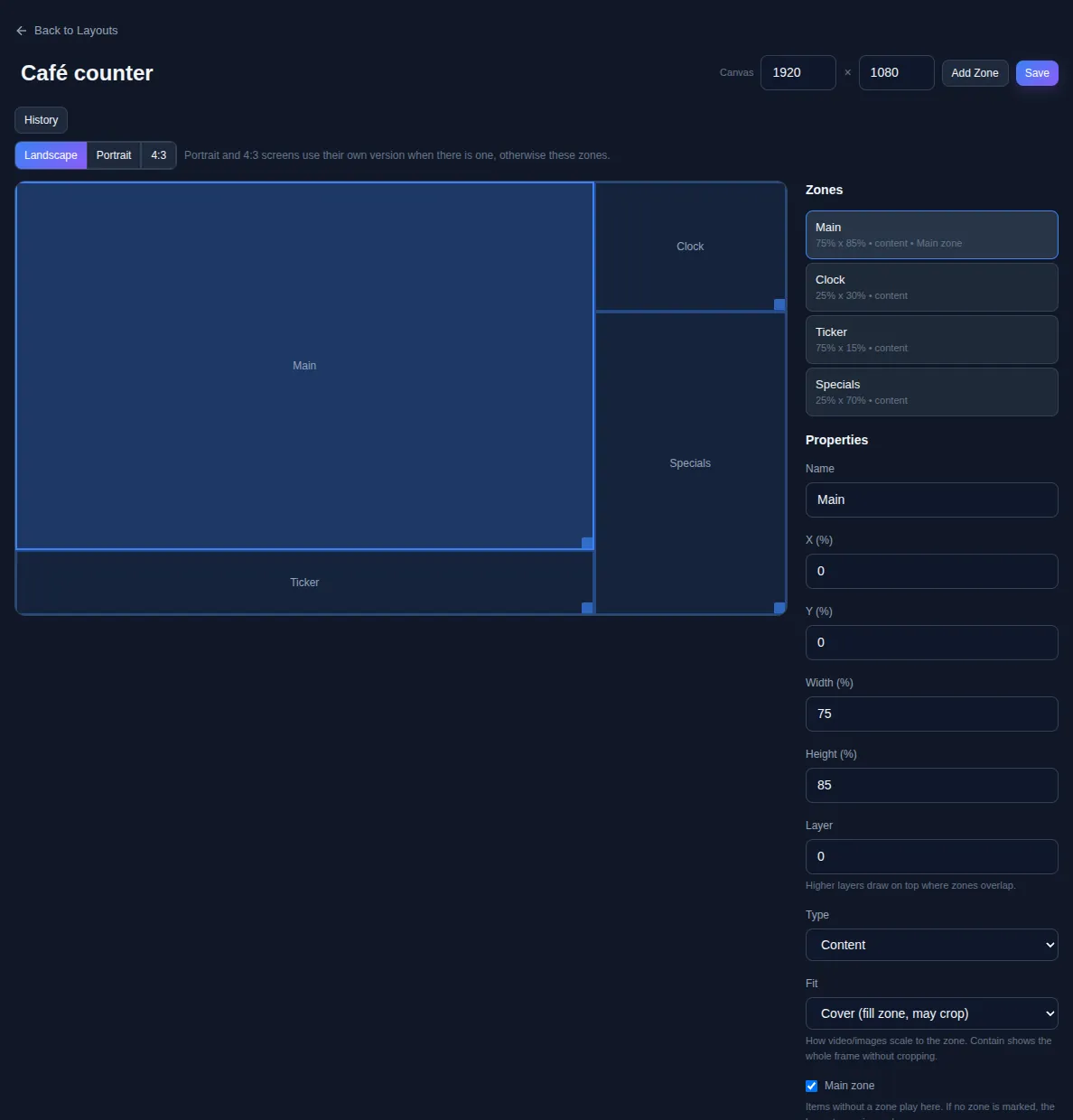
Layer decides which zone draws on top where two overlap (picture in picture). Type (Content or Widget) is a label for you: it does not stop you putting a widget in a content zone, or the other way round.
Make widgets
Open Widgets and choose New Widget. Pick a type, fill in the form, and choose Save. Preview shows what it will look like first. The types are Clock, Weather, News Ticker, Text/HTML, Webpage, Cloud document, Social wall, Directory Board, Directory Search, Menu Board, BI Dashboard, Room Display and Transition.
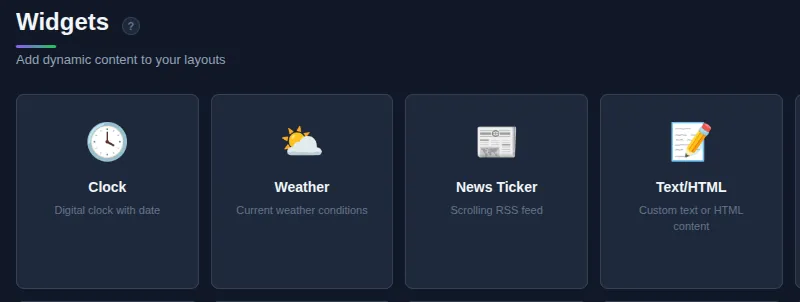
A widget is not tied to one screen. You make it once, then add it to any playlist. When you edit a saved widget, the screens showing it update without a new publish (unless your workspace requires changes to be approved first).
A clock
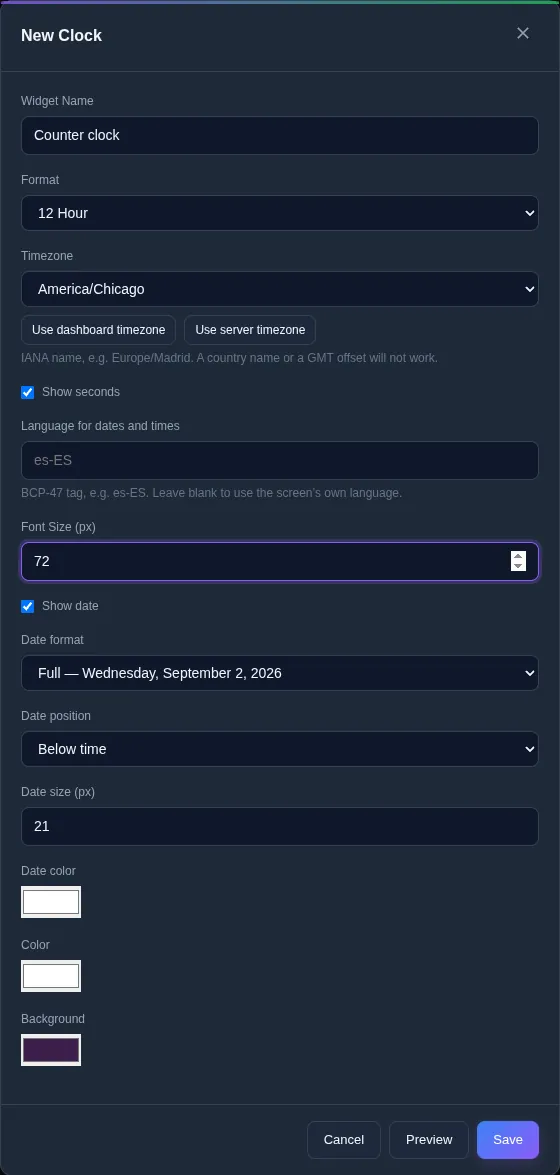
Choose Clock. Set Format (12 Hour or 24 Hour) and the Timezone; the two buttons under it copy the dashboard’s or the server’s time zone. Size the time with Font Size (px) and the date with Date size (px), and set the colours to match your design. Sizes are in screen pixels, so size them for the zone the clock will sit in: a 64 px clock fits a quarter-width zone on a 1080p screen.
The weather
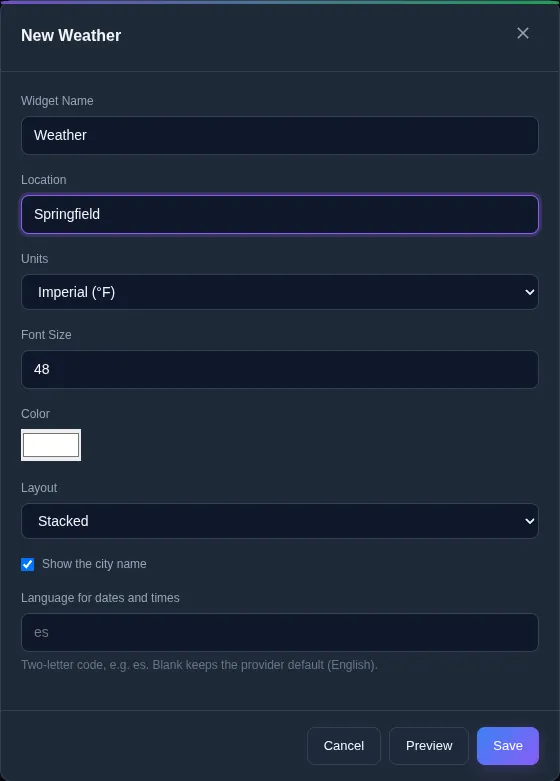
Choose Weather and type a Location (a city, like “Springfield”). Pick Units, Layout (Stacked or Side by side) and whether to show the city name. The widget shows live conditions for that place from an online weather service, so your ScreenTinker server needs to reach the internet for it to fill in.
A news ticker
Choose News Ticker. Paste a news site or a feed address into Website or feed address and choose Find feeds. ScreenTinker looks for the site’s feeds, lets you pick one, and shows its latest headlines so you can check it is the right one. Under Look, Scrolling ticker runs the headlines along a strip, and Headlines with pictures shows one story at a time. A ticker belongs in a wide, short zone.
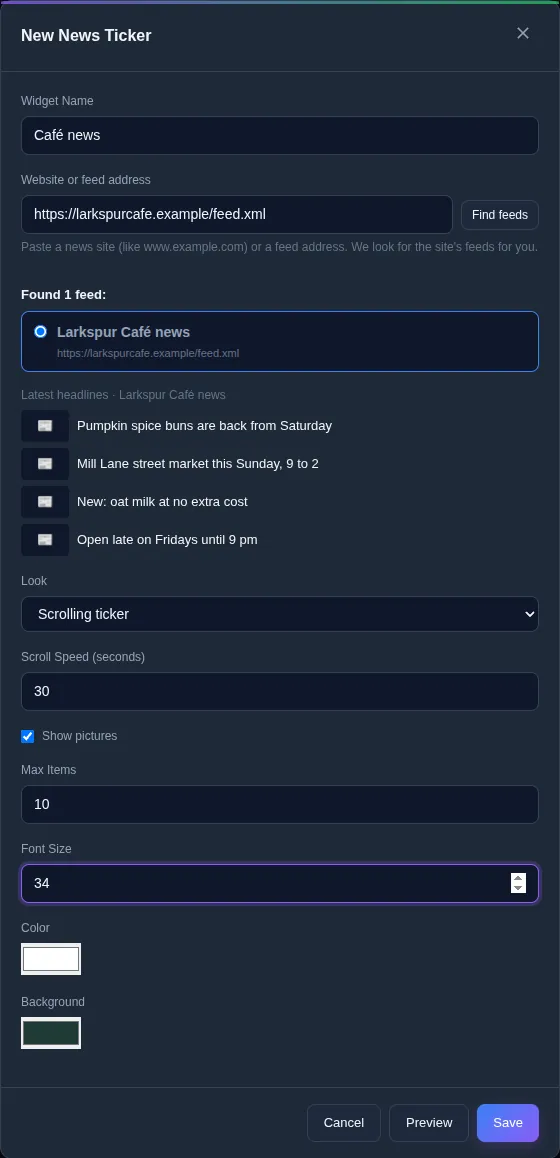
For a box of text such as today’s specials, a Text/HTML widget takes your own HTML and CSS.
Put widgets in zones, through the playlist
Widgets and pictures reach a screen through a playlist. The playlist is also where you say which zone each one plays in.
- Open Playlists and open (or create) the playlist.
- In the Layout row, pick your layout. Every item row now has a Zone picker.
- Choose + Add Content. Add pictures and videos from the Content tab, and widgets from the Widgets tab, with Add.
- New items go in the main zone, shown as Main zone (Main). Change the Zone on each row that belongs elsewhere: the clock to Clock, the ticker to Ticker.
- Choose Publish. Screens keep showing the old version until you do.
- If the playlist is not on a screen yet, open the screen’s page under Screens and choose it under Playlist.
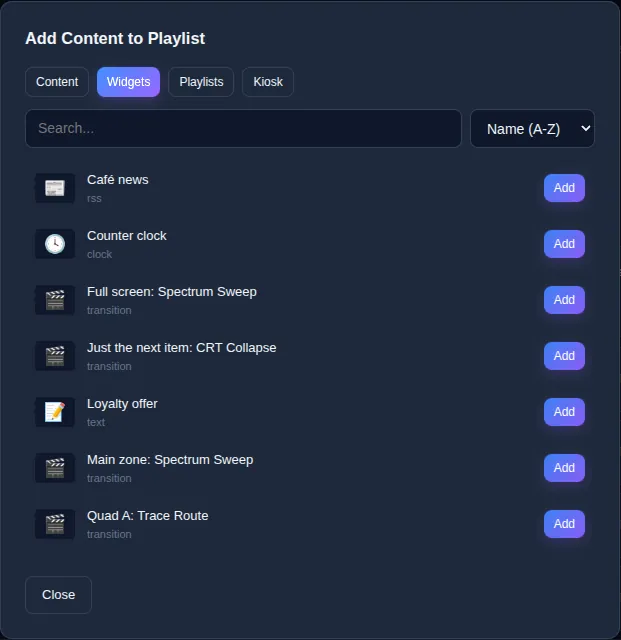
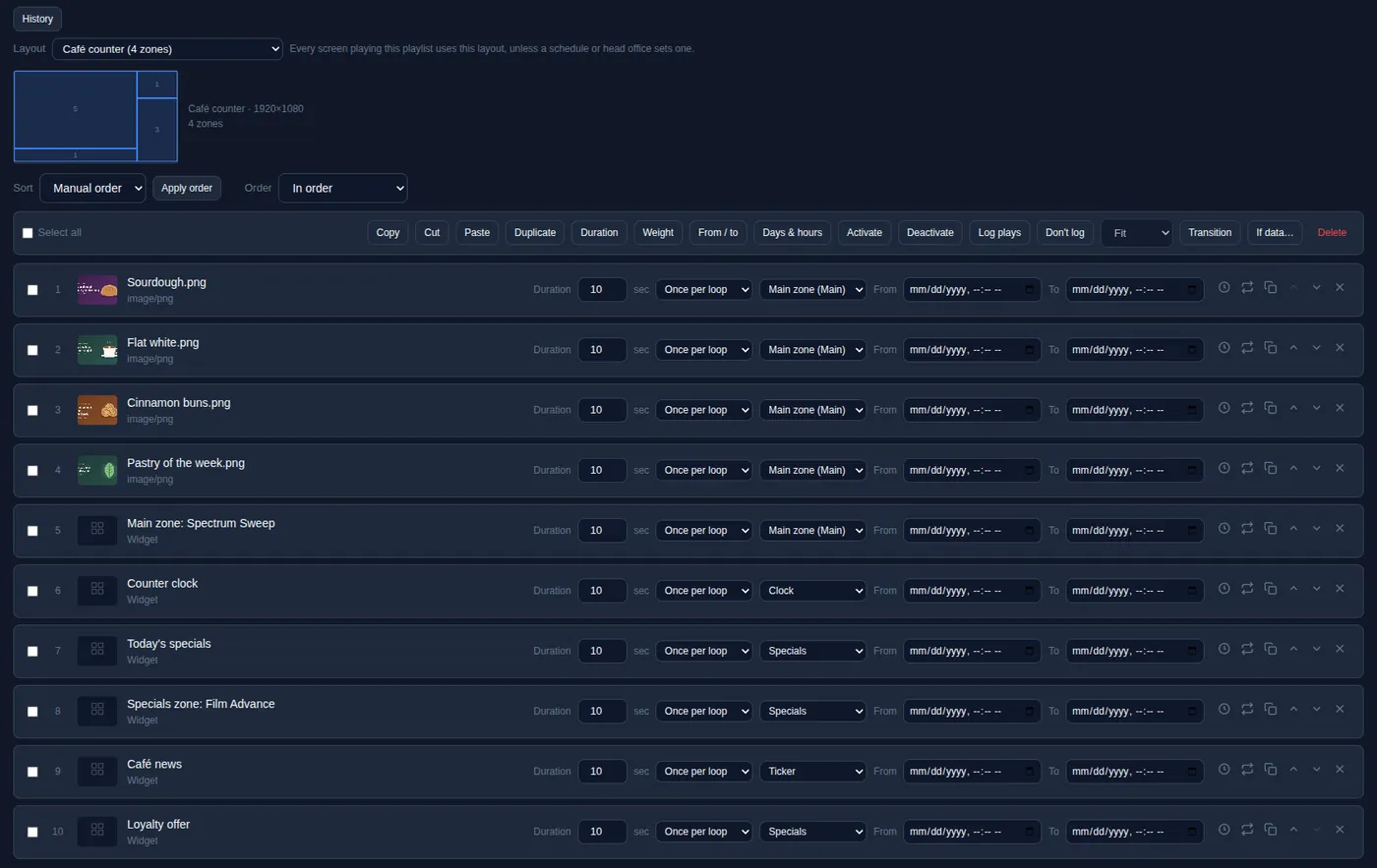
A zone with one item shows it all the time. A zone with several plays them in turn, each for its Duration. Zones do not wait for each other.
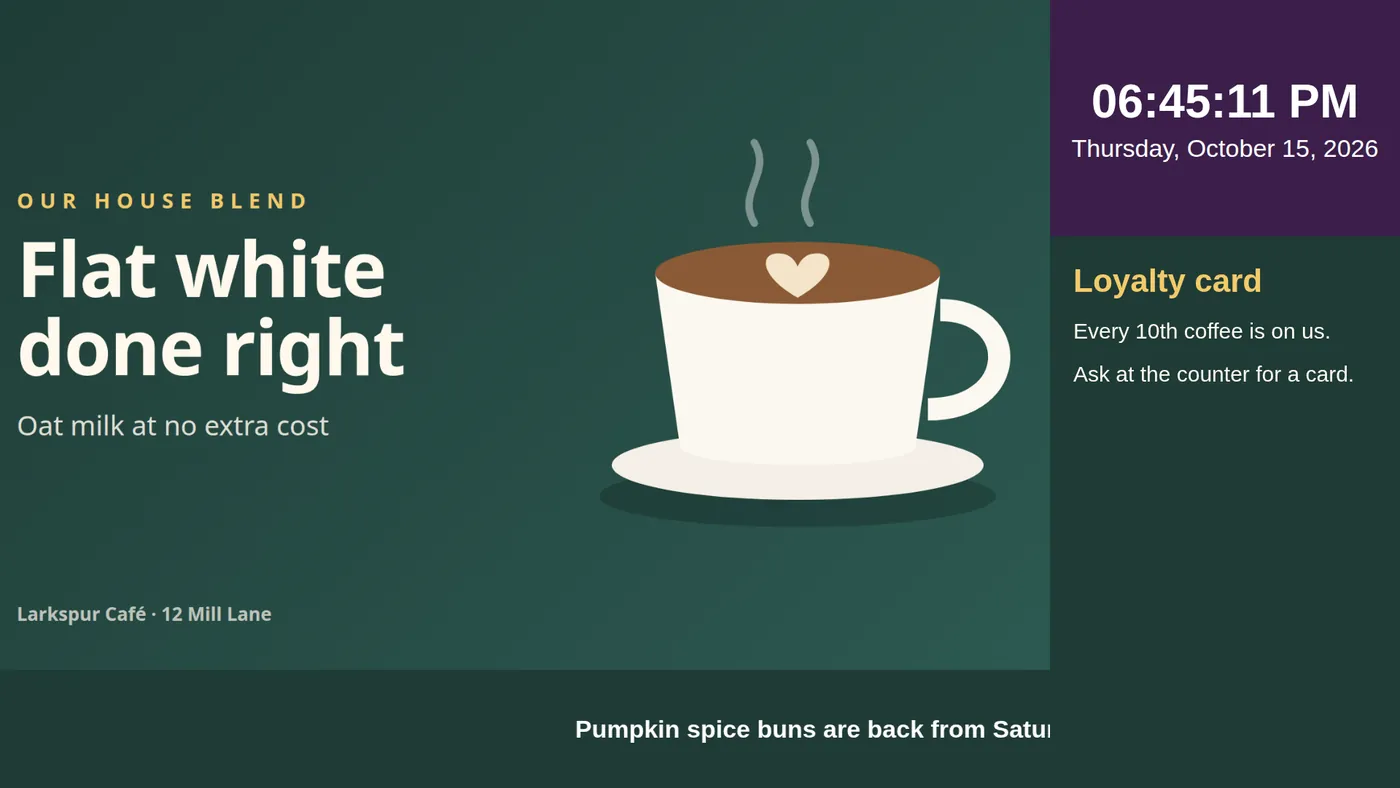
Before a publish, ScreenTinker checks for things that will be hard to read on the screen. When it first published this playlist, it warned that the clock’s date was too small to read from 3 m away, and said how much bigger to make it.
Transitions
A transition is how one item gives way to the next: a dissolve, a sweep, a glitch. In ScreenTinker it is a widget that you add to the playlist like any other. It never appears on the screen as an item of its own. It changes how the other items in its zone arrive.
Make a transition
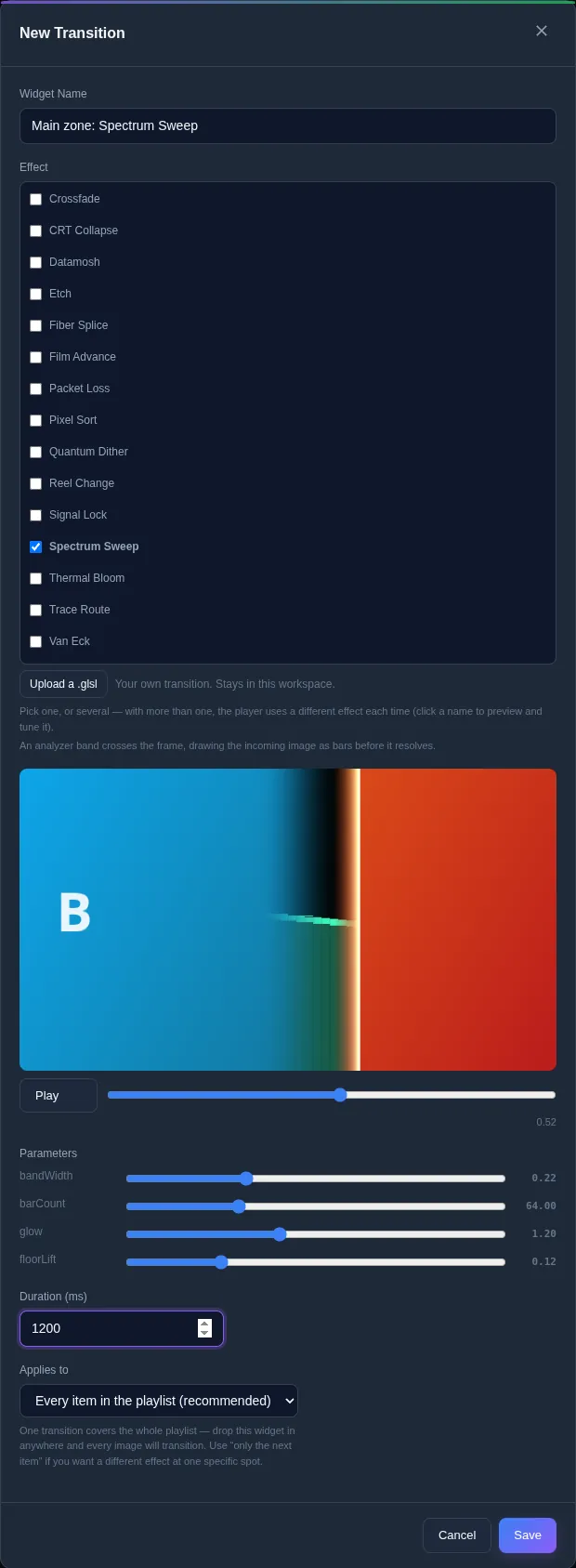
- In Widgets, choose New Widget and then Transition.
- Under Effect, tick one effect, or several. With several, the player picks one of them at random each time an item changes.
- Click an effect’s name to preview it. Play runs it, and the slider stops it at any point. Its Parameters sliders change how it looks, and the preview shows the change at once.
- Set Duration (ms): from 150 to 3000 milliseconds. The default is 800.
- Set Applies to (next section) and choose Save.
Put it in the zone it should affect
Add the transition to the playlist from the Widgets tab, then set its Zone to the zone whose items should use it. A transition only affects the items in its own zone. In the playlist above, the Spectrum Sweep sits in the main zone, so the pictures there sweep in; the clock and the ticker are untouched. Its Duration field does nothing: it takes no time in the running order.
A transition’s settings are copied into the playlist when the playlist is published. So unlike other widgets, an edit to a transition does not reach the screens on its own, and the playlist does not offer Publish for it either. After editing one, make a change to the playlist (for example, remove the transition, add it again and set its zone) and publish.
In a playlist without a layout, the whole screen is one zone, and one transition covers everything.
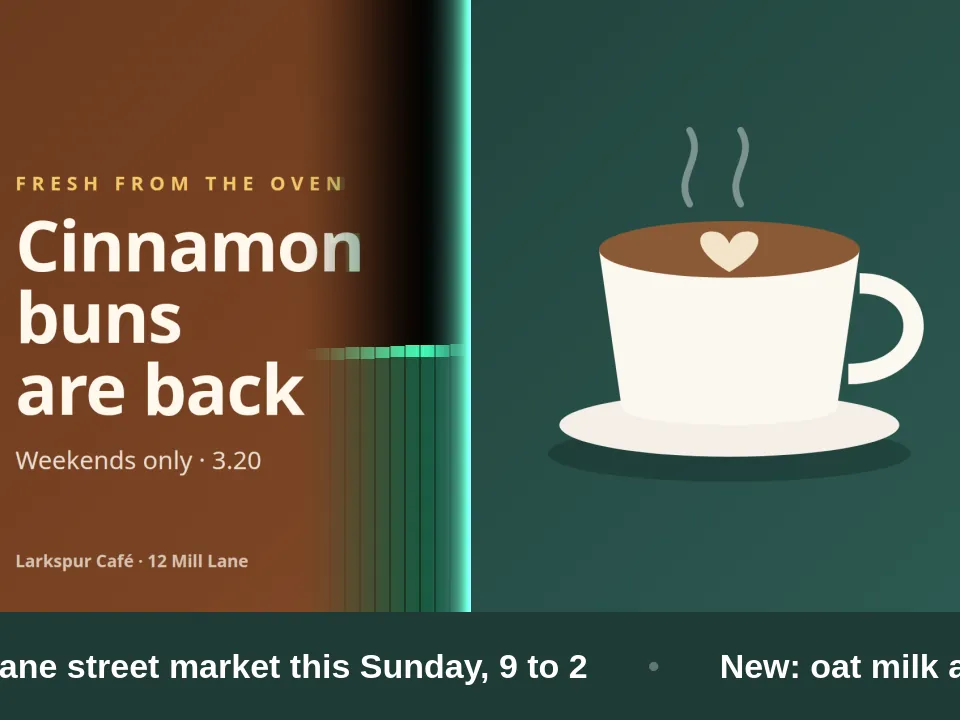
“Every item” or “Only the next item”
- Every item in the playlist (recommended) makes it the default for every item in its zone, wherever you put it in the list. In a playlist with a layout, “the playlist” here means that one zone. If a zone has more than one of these, the last one in the list is used.
- Only the next item (advanced) applies it to the one item right after it in the same zone, and overrides the default there. Put it last in a zone and it applies to the first item instead, because the playlist loops back to it.
So for one effect everywhere, use one “every item” transition per zone. For a different effect at one spot, add an “only the next item” transition just above that item.
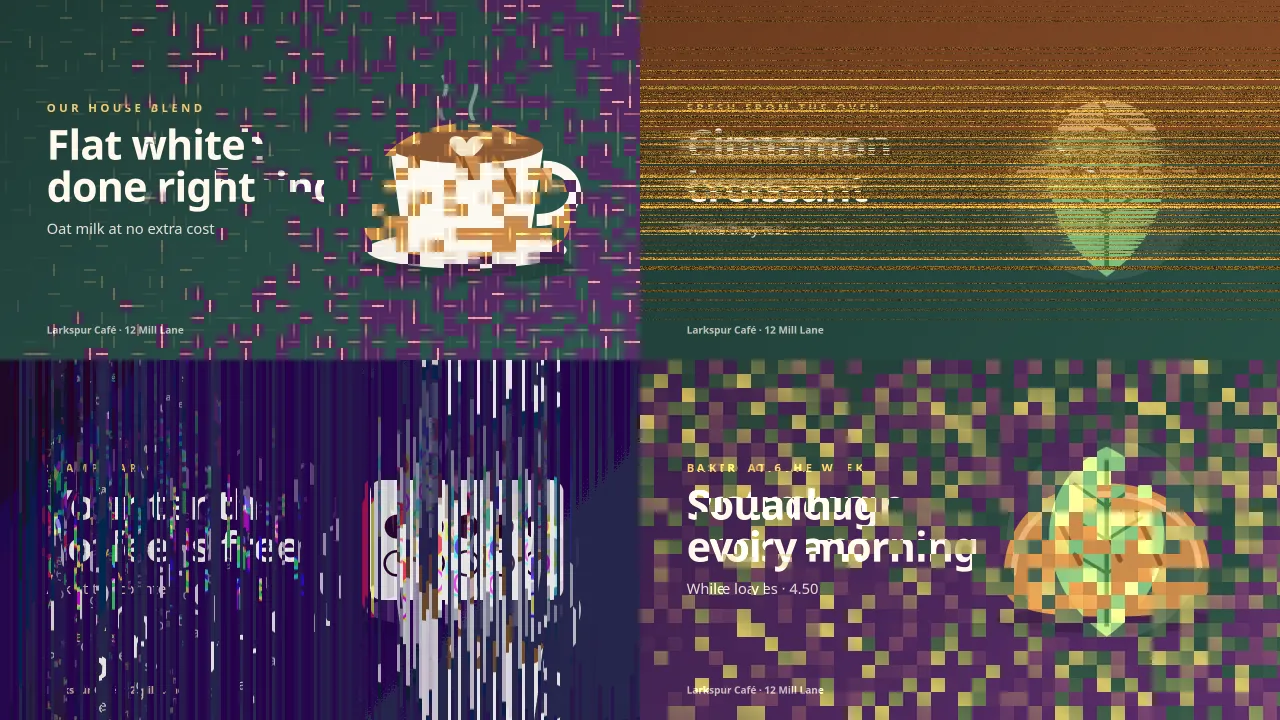
A wipe in each of four zones
Each zone needs its own transition. To get a wipe in all four zones of a Four Quadrants layout, add four transitions to the playlist and put one in each zone. They can be the same effect or four different ones. Below, each quadrant has two pictures and its own effect, and they all change at once because every picture has the same duration.

The Transition button on selected items
In a playlist, tick some items and choose Transition in the bar above them. A box lists your transition widgets by number; type the number (or the name). ScreenTinker then adds that transition directly above each item you ticked, in that item’s zone. Use it with an Only the next item transition to give just those items that effect. With an Every item transition, the result is the same as adding it once to each of those zones. If you have no transition widgets yet, it says “No transition widgets in this workspace”.
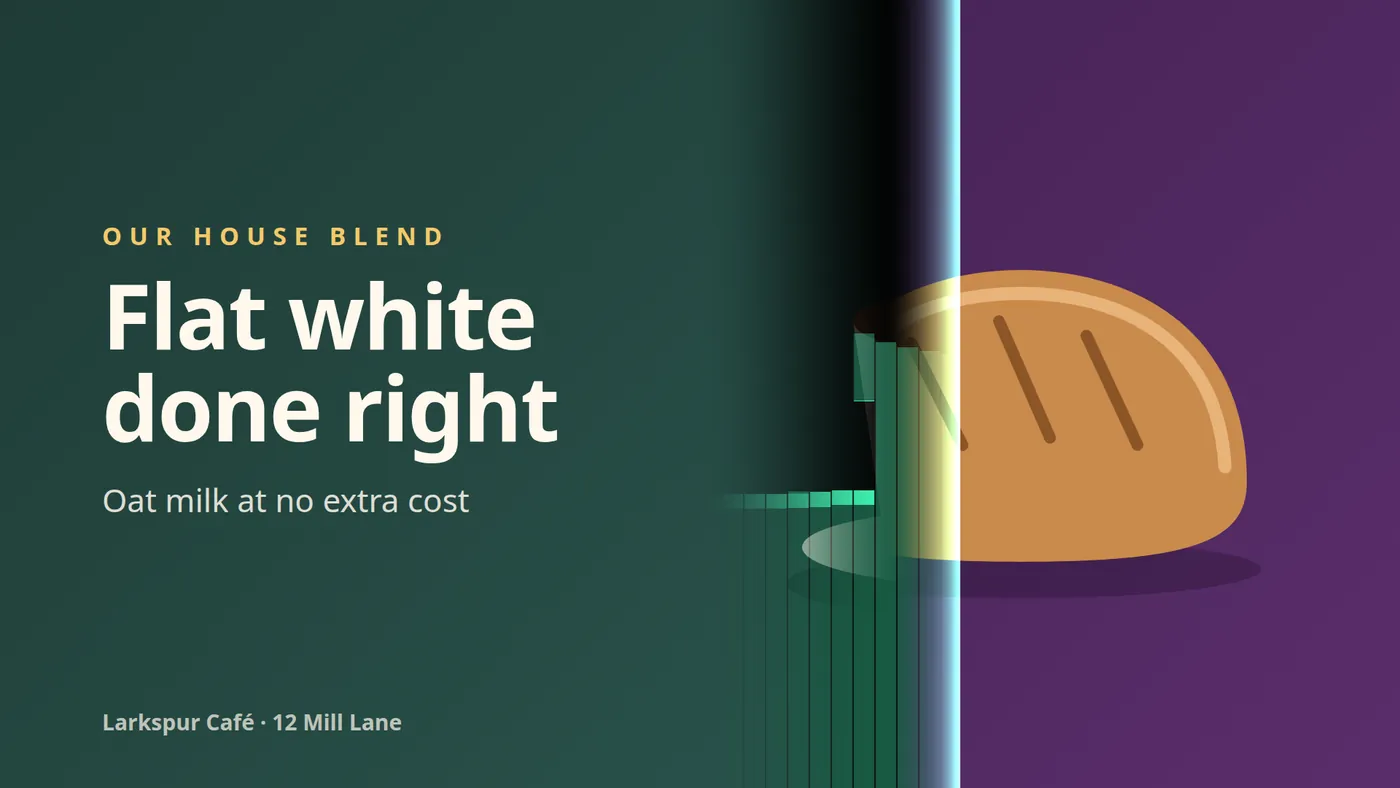
Full screen
Which players draw what
Players draw transitions between pictures and videos. Whether they draw them inside a layout’s zones depends on the player. This is what the player code does today:
| Player | Full screen (no layout) | Inside layout zones |
|---|---|---|
| Raspberry Pi, Windows and Mac (native player) | Your effect | Your effect, in each zone |
| Android TV, Fire TV and Android panels | Your effect | Your effect, in each zone (from 3.0.1) |
| Web player (a browser, ChromeOS) | Your effect | Plain cut |
| Samsung Tizen | Your effect | Plain cut |
| LG webOS | As the web player, where the panel can run it | Plain cut |
| BrightSign | As the web player; may cut over video | Plain cut |
| Fire TV Stick 4K Select / HD (Vega) | Picture to picture only; cuts when a video is involved | Plain cut |
| Roku | A cross-fade, at your duration | A cross-fade, at your duration |
- Raspberry Pi, Windows and Mac: each zone has its own transition runner. On a machine without a graphics driver the player cross-fades instead of running the effect.
- Android TV, Fire TV and Android panels (from 3.0.1): each zone wipes on its own while the other zones keep playing. On low-memory devices such as the Fire TV Stick 4K, at most two zones run the full effect at the same moment; any others that change at that instant fade instead. If an effect cannot start in time, that change cuts.
- Web player, webOS, BrightSign and Vega: these all run the web player, which needs WebGL in the browser; without it, it cuts. On BrightSign, video plays on a separate hardware layer, so an effect over a video may not be visible and you see a cut. On the Vega sticks a video change always cuts, because drawing a video frame crashes their compositor.
- Roku has no way to run the effects, so it cross-fades for the duration you set.
- Widgets (a clock, a ticker, a web page) appear with a plain cut on every player. Transitions are for pictures and videos.
- Older players that do not know about transitions ignore them and cut. Nothing else changes, and the playlist plays as normal.
Troubleshooting
My transition does nothing
- The screen plays a layout, on a player that cuts in zones. See the table above: on the web player, Tizen, webOS, BrightSign and Vega, items inside zones change with a cut. Full-screen playlists get the transition on those players. Android players need 3.0.1 or later for transitions in zones.
- The transition is in a different zone from the items. Look at the Zone column. The transition and the pictures it should affect must be in the same zone. Main zone (Main) and Main are the same zone.
- The items are widgets. Widgets change with a cut on most players.
- The zone has only one item, so nothing ever changes in it.
- The playlist was not published after you added the transition. Look for Unpublished changes at the top of the playlist.
- You edited the transition but not the playlist. The playlist keeps the settings it was published with; see above.
- The player is old, or cannot run the effect. It cuts instead. Updating the player is the fix; on BrightSign and Vega, see the notes above about video.
- A transition in one zone also shows in another on a server you run yourself: update the server. Older versions applied an Every item transition to every zone of the playlist.
My widget does not show
- The playlist was not published. Adding an item, or changing its zone, needs Publish.
- It is in the wrong zone, or shares a zone with other items and is waiting for its turn. Check its Zone, and give a widget that should always show a zone of its own.
- The screen is not playing this playlist. A schedule, a screen group or a head office playlist may be showing something else. The screen’s page says what it is playing.
- The layout is not the one you think. With Each screen’s own layout, a screen with no layout of its own plays every item full screen, one after another.
- It is cut off. Widget text is sized in screen pixels. Make the font smaller or the zone bigger, and check with Preview.
- A news ticker or weather widget is empty. Your ScreenTinker server fetches the feed or the weather, so it needs to reach that address. On a self-hosted server behind a firewall, allow it out.
- On a Roku, widgets are still pictures that the server draws and refreshes on a timer, so nothing in them moves. (Clocks are the exception: the Roku draws those itself.)
Try it on your own screens
Start a 14-day Pro trial on hosted ScreenTinker: up to 15 screens, no credit card. Every widget, layout and transition here is included.
Start your free trial View on GitHubOr self-host it on your own server, free for any number of screens.